
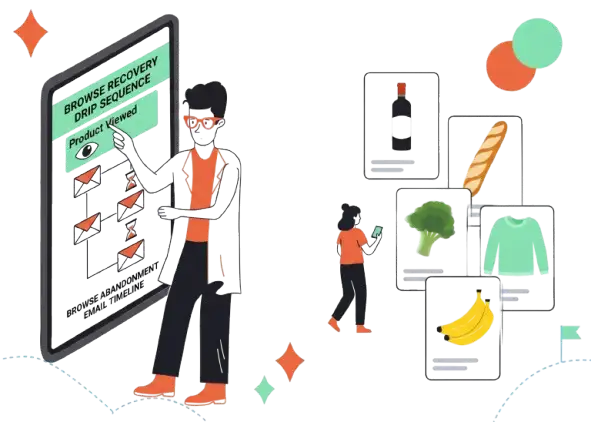
If you are running an e-commerce store, Browse Abandonment is your highest volume, lowest conversion opportunity. Most marketers ignore it because the intent is lower than a cart abandoner. That is a mistake.
Drip handles this workflow differently than Klaviyo or Mailchimp. The visual builder is world-class, but the email editor requires you to get your hands dirty with code to display dynamic products correctly.
The Bottom Line: If you are comfortable with a little JavaScript or Liquid code (or have a dev who is), Drip’s browse abandonment automation is incredibly powerful. If you want a 100% no-code drag-and-drop solution for dynamic product blocks, this will frustrate you.
Most marketers obsess over Cart Abandonment. It makes sense—that customer was seconds away from buying.
But if you only focus on carts, you are ignoring 90% of your window shoppers.
Browse Abandonment targets the people who looked at a specific product but never added it to their cart. The volume here is massive. Even a 1% conversion rate on browse abandonment can out-revenue a 10% conversion rate on cart recovery simply because the pool of people is so much larger.
I have spent years configuring Drip for e-commerce clients. I’m going to walk you through exactly how to set this up, the technical pitfalls I’ve hit (so you don’t have to), and the strategy that actually converts without creeping people out.
The “Browse” vs. “Cart” Distinction
Before we build, we need to agree on definitions. If you get this wrong, you will annoy your customers.
- Cart Abandonment: High Intent. They clicked “Add to Cart.” They want it. You can be aggressive here.
- Browse Abandonment: Low Intent. They viewed a product page. They are just looking. You must be helpful, not pushy.
The Golden Rule: Never send a Browse Abandonment email to someone who also triggered a Cart Abandonment or Checkout Started event. The higher intent workflow must always win.
Step 1: The Technical Setup (The Hard Part)
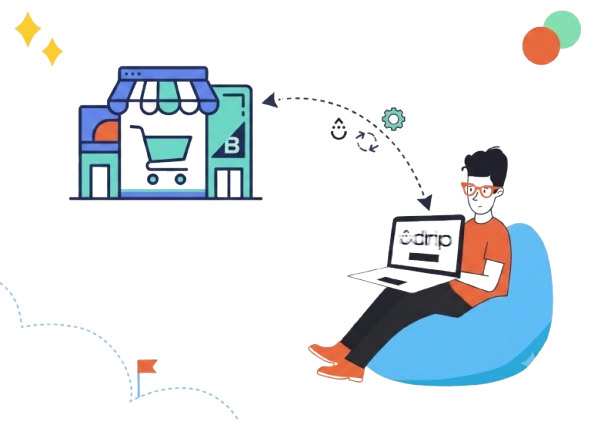
This is where Drip trips up beginners. You might assume that connecting your Shopify or WooCommerce store automatically tracks “Viewed Product.”
Sometimes it does. Often, it doesn’t do it well enough.
The Native Integration vs. The JS Snippet
If you use Drip’s native integration (especially with Shopify), it relies on webhooks. This is fine for order data, but for “Viewed Product” events, I have found it unreliable.
The problem I’ve encountered: The native integration often lags. Worse, if your store uses a “Quick View” modal (where a customer views a product pop-up without opening the full page) or runs on a headless setup, the native integration often misses the event entirely.
The Fix: You need to manually install the Drip JavaScript snippet (_drip.push).
By firing the event directly from the browser, you capture user intent in real-time.
Technical Note: If you sell products with visual variants (like a t-shirt that changes color when you click “Red”), the standard snippet is not enough. To show the exact variant they looked at in the email, I’ve had to modify the JS snippet to scrape the currently selected variant ID from the DOM. If you don’t do this, Drip defaults to the main product image, which lowers conversion.
Step 2: The “Creepiness” Threshold (Timing Strategy)
When I first set up browse abandonment flows, I made a rookie mistake: I sent the email 15 minutes after they left.
The Result: High open rates, huge unsubscribe rates, and angry replies.
Sending a “We saw you looking!” email 15 minutes after someone closes a tab feels like stalking. It’s too aggressive for someone who was just window shopping.
Conversely, waiting 24 hours is too long. The impulse is gone, or they bought from a competitor.
The Sweet Spot: 2 to 4 Hours
Through A/B testing across multiple accounts, I have found that a 2-hour delay is the highest performing window.
Why this works:
- Session Completion: It gives the customer time to finish their browsing session naturally.
- Memory: The product is still fresh in their mind.
- Tone: It feels like a helpful reminder (“Did you have questions?”) rather than a desperate sales grab.
Step 3: Drip Automation Logic (The Rules)
You cannot just trigger an email every time someone looks at a product. If a customer browses 10 items in 5 minutes, you will bomb their inbox.
Here is the exact logic setup I use in Drip’s Visual Workflow Builder:
- Trigger: Viewed Product (via Custom Event or Integration).
- Filter (The Safety Net):
- Check if they have started a checkout in the last 24 hours (If YES -> Exit).
- Check if they added to cart in the last 24 hours (If YES -> Exit).
- Frequency Cap (Crucial):
- Only allow a person to enter this workflow once every 7 days.
- Reasoning: You do not want to become “that brand” that emails them every time they visit your site.
- Wait Step: 2 Hours.
- Action: Send Email.
Step 4: The Email Content (The Limitation)
This is the part where I have a love/hate relationship with Drip.
In tools like Klaviyo, you can often drag a “Dynamic Product Block” into the email, set it to “Viewed Product,” and it auto-populates.1
The Drip Reality:
Drip is powerful, but it requires you to be comfortable with Liquid (their templating language). There isn’t a simple “magic button” to display the specific product the user just viewed in a non-cart event.
The Frustration:
To get the product image, title, and price to render dynamically, you often have to insert code blocks.
It looks something like this:
<img src=”{{ event.image_url }}” alt=”{{ event.product_name }}”>
The Workaround:
If the “Viewed Product” event doesn’t pass the image URL cleanly (which happens if your JS snippet isn’t perfect), the email breaks. I always code a “fallback” block.
- If Product Data Exists: Show the specific item.
- If Data is Missing: Show a static “Best Sellers” block instead.
Pro Tip: Do not try to display a grid of “Related Products” in a browse abandonment email unless you have a third-party recommendation engine. Keep it simple: Show the one thing they looked at.
Step 5: Subject Lines (The “Helpful Consultant”)
Your subject line determines whether this email feels like service or spam.
The Loser: “You left something behind!”
This is factually incorrect. They didn’t leave it behind; they just looked at it. This phrasing creates cognitive dissonance.
The Winner: The “Helpful Consultant” approach.
Your goal is to start a conversation or remove a blocker.
Top Performing Subject Lines:
- “Questions about the [Product Name]?”
- “Is this the one?”
- “Take another look…”
- “Saw you checking this out” (Use with caution—only for younger demographics).
I prefer the question format. It invites a mental reply.
Drip Review: Is It Right for Browse Abandonment?
If you are considering Drip specifically for this feature, here is my honest assessment.
Drip – Best for Granular Automation Geeks
Who Is It Really For?
Drip is best for e-commerce brands doing $50k+ in monthly revenue who have a dedicated marketing manager or developer. It is for teams who want total control over the logic and don’t mind touching code.
The Killer Feature (That Actually Matters):
The Visual Workflow Builder.
Most tools have workflow builders, but Drip’s is visually superior. You can see the entire customer journey, split paths based on lifetime value (LTV), and tag users based on specific category views.
- Experience: I use Drip to tag users as “Sneakerhead” or “Boot Lover” based on which categories they browse, then route them into entirely different long-term nurture sequences.
Pricing at a Glance (as of late 2026):
Drip doesn’t hide behind “Enterprise” quotes until you get massive.
- $39/mo: Up to 2,500 contacts (Full feature set).
- $1,000/mo+: Once you hit 150k+ contacts.
- Note: Unlike some competitors, Drip doesn’t charge extra for “SMS credits” or “Advanced Automation” on the lower tiers. You get the full engine immediately.
Pros & Cons
|
Pros |
Cons |
|---|---|
|
Logic & Tagging: Unmatched ability to segment based on browsing behavior. |
Learning Curve: Not beginner-friendly. Requires Liquid knowledge. |
|
Visual Builder: Clean, intuitive interface for building complex flows. |
Template Editor: Feeling dated compared to newer drag-and-drop tools. |
|
Flat Pricing: No hidden “Pro” tiers for automation features. |
Dynamic Data: Displaying “Viewed Products” is harder than it should be. |
The Smartest Way to Get Started:
Do not try to build the JS snippet yourself if you aren’t a coder. Go to Upwork, pay a developer $100 to “Install Drip Viewed Product tracking with Variant Support.” It will save you 10 hours of headaches.
Final Verdict:
Buy. But only if you are willing to learn the logic.
Who Should Avoid It?
- Solo Founders with no tech skills: If the idea of HTML or Liquid code scares you, use a tool with a deeper native integration for your specific platform.
- Low Traffic Stores: If you get less than 1,000 visitors a month, browse abandonment won’t generate enough volume to justify the setup time. Focus on traffic first.
Drip Costs: What You Actually Get
Many tools punish you for growing. Drip is relatively flat, but you need to know what you are paying for.
- Under $50/mo: You get the full automation engine. This is rare. Most tools gate their “Journey Builder” behind a $100+ tier.
- The “Email Send” Cap: Drip charges based on active people, not just sends. However, if you email your list every single day, watch out for fair use policies.
- The Hidden Cost: The real cost of Drip is time. Because it is a blank canvas, you will spend more time building and testing than you would on a “plug-and-play” tool. Factor your hourly rate into the cost.
Your Action Plan: 5 Steps to Launch
Ready to turn window shoppers into buyers? Here is your checklist.
- Install the Script: Verify that _drip.push is firing on your product pages. Use the “Google Tag Assistant” or your browser’s “Inspect Element > Network” tab to verify the request is sending.
- Create the Segment: Create a segment in Drip called “Browse Abandoners” just to see how many people qualify (Viewed product 2 hours ago, did not place order).
- Build the Email: Keep it simple. One image of the product, one button (“Return to Product”), and a text block offering help.
- Set the Rules: Configure the 2-hour delay and the 7-day frequency cap.
- Go Live & Monitor: Turn it on. Check back in 48 hours. If the open rate is under 30%, tweak the subject line. If the unsubscribe rate is over 0.5%, increase the delay time.
What to Do Next
Go to your current email tool (even if it isn’t Drip) and check your Browse Abandonment revenue. If it is $0 because you haven’t set it up, or if it’s low because you are using generic emails, fix the trigger.
Stop sending generic blasts. Start sending behavior-based logic.
FAQ
Q: Can I do Browse Abandonment without the JavaScript snippet?
Yes, but it is risky. You can use the native integration (Shopify/WooCommerce/Magento), but it often misses data. The JS snippet is the gold standard for accuracy.
Q: Should I include a discount code in browse abandonment emails?
No. Do not train your customers to wait for a coupon. Save the discounts for Cart Abandonment or Win-Back campaigns. Browse abandonment is a customer service touchpoint, not a clearance sale.
Q: What if I don’t have the product image in Drip?
Use a fallback. Create a generic image that says “Take another look” or feature your brand logo. It’s better to send a generic email than a broken image link.
Q: How does this differ from “Product View” abandonment?
It is the same thing. Different platforms use different terminology. Drip usually calls the event “Viewed a Product.”