
You send a campaign. You get a 25% open rate and a 3% click rate. On paper, you did your job.
But you have no idea what actually happened.
Did they click the massive hero image you spent $300 designing? Did they click the text link in the footer? Did they try to click a non-linked element out of frustration? Standard analytics tables hide this reality. They give you a list of URLs and raw numbers, but they lack spatial context.
This is where email heatmaps (or visual email analytics) strip away the vanity metrics. They show you exactly where subscribers looked, where they clicked, and more importantly, what they ignored.
I’ve spent years analyzing these thermal and click maps across different platforms. The data often hurts my feelings as a copywriter, but it always makes the next campaign more profitable.
Quick Verdict: The “TL;DR”
Email heatmaps are the only way to distinguish between “lucky” clicks and intentional design. While standard click-through rates (CTR) tell you that someone clicked, a heatmap tells you why. If you are running an e-commerce store or a newsletter with multiple links, this is non-negotiable. If you send plain-text cold outreach, skip this—you don’t need it.
Here is exactly how to use them.
What is an Email Heatmap?
An email heatmap tool is a data visualization method that overlays engagement metrics directly onto your email design.
Instead of a spreadsheet saying “Link A got 50 clicks,” you see a visual representation of your email. “Hot” areas (usually red or orange) indicate high engagement, while “cold” areas (blue or clear) show elements that your users completely bypassed.
The Two Main Types
Most marketers confuse these, but they are distinct:
- Click Maps: These track distinct clicks on links. Most ESPs (Email Service Providers) like Mailchimp provide this natively.
- Attention/Scroll Maps: These track how far down a user scrolled and how long they viewed a section. This usually requires third-party tools like Litmus or Email on Acid because standard ESPs cannot easily track “read time” per pixel due to email client privacy restrictions.
Key Takeaway: Start with Click Maps. They are free in most platforms and offer immediate ROI. Move to Attention Maps only when you are fine-tuning expensive, high-volume campaigns.
The Tool Stack: A Real-World Comparison
I don’t believe in listing 50 tools. I believe in using what works.
I have personally managed campaigns using the big three: Mailchimp, Klaviyo, and Litmus. They handle email heatmap analytics very differently.
Here is the breakdown based on my experience.
1. Mailchimp (The “Click Map”)
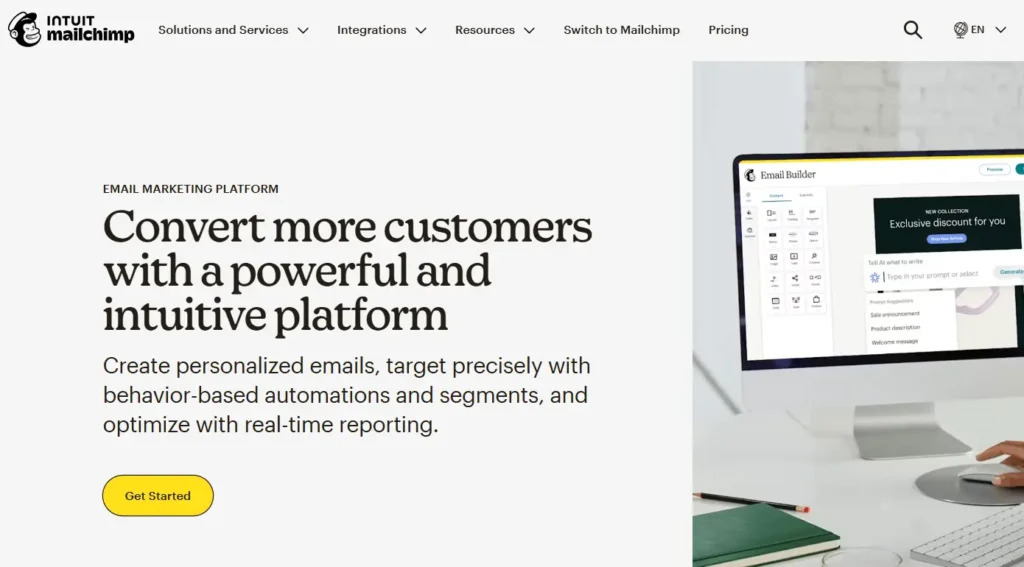
Best For: Small businesses and content creators.
Mailchimp doesn’t give you a thermal gradient (the classic “Predator vision” look). Instead, they use a “Content” vs. “Click Map” toggle in the Reports tab.
- The Interface: When you toggle it on, Mailchimp overlays small percentage badges next to every clickable element on the email thumbnail.
- The Experience: It’s basic but functional. I use it to quickly spot the “Link Intent.” For example, seeing that 25% of people clicked the logo (low intent) vs. 15% clicking “Buy Now” (high intent) tells me my CTA isn’t distinct enough.
2. Klaviyo (The “Activity Map”)
Best For: E-commerce brands requiring segmentation.
Klaviyo wins on granularity. You find this in the “Link Activity” tab within campaign analytics.
- The Interface: It combines a list view with a visual overlay.
- The Killer Feature: You can toggle the view by device (Desktop vs. Mobile). This is critical. I’ve seen campaigns look great on a desktop map but show zero engagement on mobile because the button was pushed below the fold.
- My Take: If you sell products online, you need this separation.
3. Litmus (The “Thermal” Deep Dive)
Best For: Enterprise teams and design agencies.
Litmus is a third-party analytics tool, meaning it integrates with your ESP (like Salesforce or HubSpot) via a tracking pixel.
- The Interface: This is a true email engagement heatmap. It renders the email as a long image. Red areas were viewed the most (based on scroll depth and open duration), fading to blue for areas users scrolled past quickly.
- The Value: It tracks views, not just clicks. It tells you if people are even seeing your footer, or if they are deleting the email before they get there.
Comparison: Which Tool Fits You?
|
Feature |
Mailchimp |
Klaviyo |
Litmus (3rd Party) |
|---|---|---|---|
|
Visual Style |
% Badges |
Visual Overlay + List |
Thermal Gradient |
|
Device Segmentation |
Limited |
Excellent |
Excellent |
|
Tracks “Views” (Non-clicks) |
No |
No |
Yes |
|
Setup Difficulty |
Instant |
Instant |
Requires Code Snippet |
|
Cost |
Included |
Included |
Monthly Subscription |
Top 3 Lessons Learned the Hard Way (My Personal Data)
You can read theory all day, but nothing beats seeing your assumptions get destroyed by data. Here are three specific instances where email click maps changed my strategy.
1. The “Banner Blindness” Reality Check
The Setup: We launched a sale with a massive, expensive Hero Image announcing “20% OFF.” It was beautiful. We assumed this would drive 80% of the clicks.
The Heatmap Result:
- Hero Image: Cold zone (10% of clicks).
- Text Link: A plain text line in the second paragraph (“Browse the sale collection here”) was the “hot” zone with 65% of clicks.
The Insight: Users have “Banner Blindness.” They subconsciously flagged the hero image as a generic ad and ignored it. They trusted the text link because it felt like information, not promotion.
Key Takeaway: Never rely solely on images for your main CTA. Always pair them with a text link.
2. The “Dead Zone” in the Header
The Setup: We placed social media icons (Facebook, Instagram) in the top-right header, right above the logo. Standard practice, right?
The Heatmap Result: Absolute zero. A statistical graveyard.
The Insight: When a user opens an email, they are in “triage mode.” They want to know what the email is about. They did not open your email to immediately jump to Instagram. Placing them at the top wastes prime real estate.
The Fix: We moved socials to the footer. We replaced that top slot with a “View in Browser” link or a secondary offer, which immediately saw engagement.
3. The “Thumb Zone” (Mobile vs. Desktop)
Heatmaps reveal a massive behavioral gap between devices.
- Desktop (The F-Pattern): The click map is scattered. Users click small text links, navigation bars, and footer links. They scan horizontally.
- Mobile (The Scroll & Stab): This map is a vertical tunnel.
- My Experience: On mobile, inline text links in the middle of paragraphs get ignored. It’s too hard to tap them.
- The Consequence: The mobile heatmap only lights up on full-width buttons. If the button isn’t isolated and large, users scroll past.
- The Drop-Off: The “cold” zone hits much faster on mobile. If your CTA isn’t in the top 50% of the scroll depth, mobile users never see it.
Who Should Avoid Heatmaps?
Radical honesty time: Not everyone needs a click heatmap for email.
Avoid if:
- You send plain text emails: If you are a sales rep sending cold outreach or “letter-style” emails from a personal Gmail/Outlook account, heatmaps are useless.
- You have low volume: If your list is under 500 people, the data sample is too small. One person clicking a link by accident will skew your “hot zone” and lead to false conclusions.
- You don’t control the code: If you are forced to use rigid corporate templates where you can’t move elements based on data, looking at a heatmap will only frustrate you.
Demystifying Costs: What You Actually Get
Pricing for email design heatmap tools is often opaque. Here is what to expect.
The “Built-In” Tier (Free / Included)
- Tools: Mailchimp, Klaviyo, constant Contact.
- Cost: $0 (Included in your monthly ESP fee).
- What you get: Basic click tracking overlay. It tells you what was clicked, but rarely how long they looked.
- Verdict: Sufficient for 90% of businesses.
The “Pro” Tier ($80 – $300/month)
- Tools: Litmus, Email on Acid.
- Cost: Usually starts around $99/mo for basic plans, scaling up for enterprise.
- What you get: Thermal scroll maps, eye-tracking simulations, and “pre-send” previews across 90+ devices.
- Verdict: Essential for agencies or brands sending 100k+ emails monthly where a 1% optimization equals thousands of dollars.
Your Action Plan: 5 Steps to Launch
Don’t just look at the pretty colors. Use the data to iterate.
- The Baseline Audit: Before changing anything, run a heatmap on your current standard template. Identify your “Dead Zones.”
- The Hypothesis: Pick one element to change. (e.g., “I bet if I move the CTA button up 200 pixels, mobile clicks will rise”).
- The Split Test: Do not just switch it. Run an A/B test. Version A is the control; Version B is the heatmap-informed layout.
- The Review: Check the email click map for Version B. Did the “hot zone” shift? Did the mobile drop-off decrease?
- The Purge: Remove elements that consistently show up “cold.” If nobody clicks your “Read our Blog” link in the footer for three months, delete it. Clutter kills conversion.
What to Do Next
Open your last sent campaign in your current ESP. Find the “Click Map” or “Link Activity” tab. Look specifically at your header and footer. If you see elements in the header with zero clicks, remove them in your next send. Start cleaning your house today.
FAQ: Heatmap Specifics
1. Do heatmaps work on Outlook?
Sometimes. Outlook is notorious for blocking images by default. Since many tracking pixels rely on image loading, your heatmap data from Outlook users might be underreported. Always view heatmap data as a “trend indicator,” not an exact census.
2. Can I see which specific person clicked a specific spot?
Generally, yes, but in a different view. The heatmap shows the aggregate (the “Where”). If you click that “hot spot” in your analytics tool, it will usually give you a list of the specific contacts (the “Who”) so you can retarget them.
3. What is a “Ghost Button”?
A ghost button is a transparent button with a thin border. Heatmaps consistently show these perform worse than solid-filled buttons because they blend into the background.
4. How many clicks do I need for a valid heatmap?
Aim for at least 50-100 clicks per email. Anything less and the visual data will be too sparse to show a meaningful pattern.