
Stop treating email marketing like a generic newsletter. If you are running a Shopify store, your email list is likely the only asset you actually own. Facebook and Google can change their algorithms tomorrow, but your list remains yours—unless you mess up the setup.
I have set up Klaviyo for everything from dropshipping startups to high-volume brand stores. The consensus is always the same: it is the most powerful tool for e-commerce, but it is incredibly easy to configure incorrectly.
Most guides will tell you how to click “install.” This guide will tell you how to actually make money with it and avoid the technical traps that cost new merchants sales.
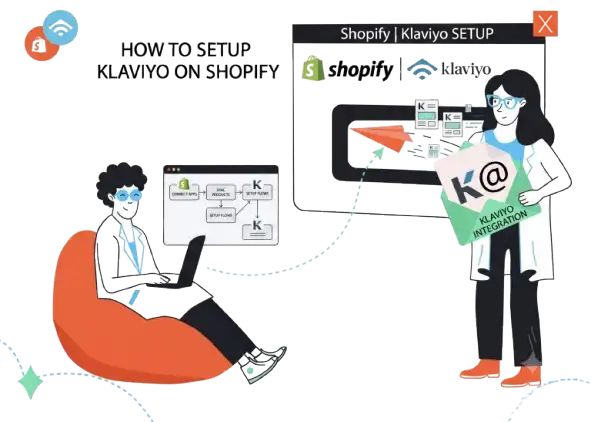
Here is how to install Klaviyo on Shopify, configure the hidden tracking scripts, and set up your first money-making flows.
Quick Verdict: The “Leadoom” Take
Verdict: BUY (With a Warning).
Klaviyo is the undisputed king of Shopify email marketing. It pulls in more data than any competitor I have tested. However, it is not a “set it and forget it” tool. If you do not actively manage your list hygiene, it becomes expensive fast.
Best For: E-commerce brands generating at least $5k/month who need granular segmentation.
Avoid If: You are a hobbyist selling 2 items a month or a content-only blogger. (Use MailerLite or ConvertKit instead).
Klaviyo Review: The 30-Second Snapshot
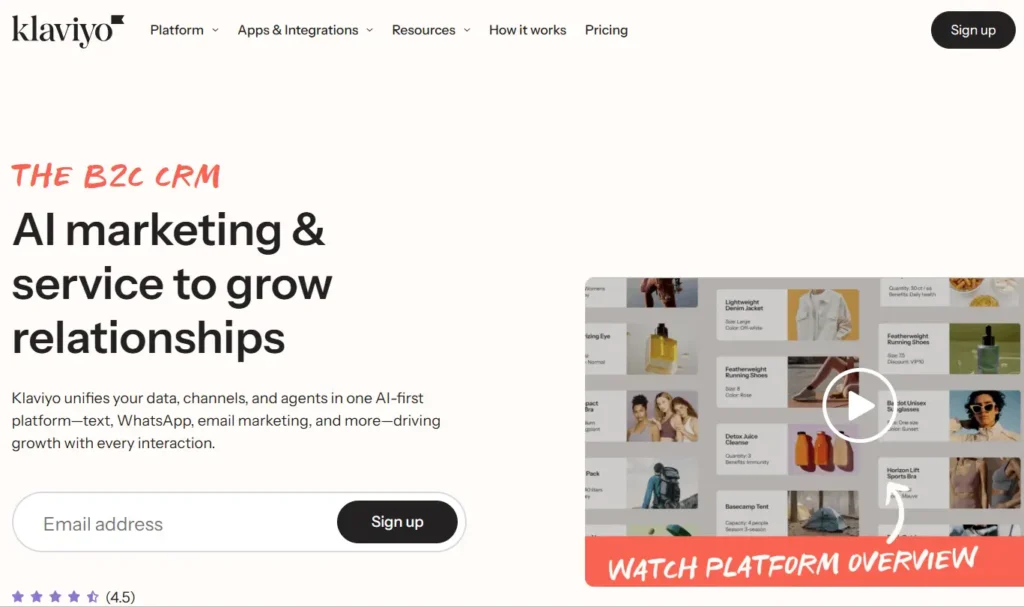
Before we get into the technical setup, let’s look at why this tool matters and what it costs.
Who Is It Really For?
This is best for Shopify merchants who want to move beyond “batch and blast” newsletters. It is designed for data nerds who want to send emails based on behavior (e.g., “Clicked on a red shirt but didn’t buy”), rather than just demographics.
The Killer Feature (That Actually Matters)
The “Added to Cart” vs. “Checkout Started” distinction.
Most tools treat these as the same thing. They aren’t.
My Experience: When I first started, I relied on the standard “Abandoned Cart” flow. I realized later I was only targeting people who started Checkout. I was missing the massive group of people who added items to their cart but never clicked “Checkout.” Enabling the “Added to Cart” tracker (which requires a manual tweak) effectively doubled the retargeting pool.
Pros & Cons
|
Pros |
Cons |
|---|---|
|
Deep Integration: Pulls historical Shopify data instantly. |
Pricey at Scale: Gets expensive once you hit 10k+ profiles. |
|
Predictive Analytics: Tells you when a customer will likely buy next. |
Support: Live chat is only available on paid plans. |
|
Templates: Pre-built flows specifically for Shopify. |
SMS Costs: Credits burn very fast if not monitored. |
The Smartest Way to Get Started
Skip the SMS plan initially. Focus entirely on maximizing email revenue first. SMS is high-cost and high-intrusiveness. Only add it once your email ROI is paying for the software itself.
Who Should Avoid It?
The “Generic Newsletter” Sender. If your strategy is simply sending one blog update a week, Klaviyo is overkill. You will be paying for e-commerce features you aren’t using.
Pricing at a Glance (Late 2026)
|
Tier |
Price |
Contacts |
Features |
|---|---|---|---|
|
Free |
$0/mo |
Up to 250 |
500 email sends/mo. Includes all features. |
|
|
Starts at $20/mo |
251 – 500 |
Unlimited sends. |
|
Email + SMS |
Starts at $35/mo |
251 – 500 |
Includes SMS credits (approx 150 SMS). |
What You Actually Get at Each Price Point
Klaviyo’s pricing model is based on “Active Profiles.” This creates a “Cost Reality Check” that catches many store owners off guard.
- The Free Tier (0-250 Profiles): Great for setup. You get full functionality. Use this to build your flows before you launch.
- The “Growth” Phase (251-5,000 Profiles): Pricing is reasonable here, usually between $20 and $100/mo. The ROI is high because your open rates are likely decent.
- The “Inactive Profile” Bloat (5,000+ Profiles): This is where it hurts.
- The Reality: Klaviyo charges for anyone you can email, not just those you do email.
- My Experience: I once realized I was paying monthly for 4,000 people who hadn’t opened an email in a year.
- The Fix: You must aggressively suppress anyone who hasn’t engaged in 90–120 days. Once you stop paying for “dead weight,” the ROI justifies the cost again.
Step-by-Step: How to Install Klaviyo on Shopify Correctly
Installing the app is simple. Configuring it to track money correctly is where people fail.
Step 1: The Initial Integration
Go to the Shopify App Store and search for “Klaviyo: Email Marketing & SMS.” Click “Install.”
The wizard will guide you through the Klaviyo Shopify sync customers process.
Critical Note: Select the option to sync “All historical data.” This allows you to immediately segment customers who bought from you two years ago, even if you just installed Klaviyo today.
Step 2: The “Added to Cart” Trap (Do Not Skip This)
This is the most common failure point in a Klaviyo setup guide for Shopify.
The Scenario: You turn on the “Abandoned Cart” flow. You think it works.
The Reality: You are likely running an “Abandoned Checkout” flow. You are missing everyone who added an item to the cart but didn’t make it to the checkout page to enter their email.
How to Fix It:
- In Klaviyo, go to Settings > Shopify Integration.
- Check the box that says “Track ‘Added to Cart’ event.”
- Go to your Shopify Admin > Online Store > Themes > Customize.
- Go to App Embeds (on the left sidebar) and toggle Klaviyo Onsite JavaScript to ON.
Without this, you are leaving 30-40% of potential recoverable revenue on the table.
Step 3: The “Double Email” Conflict
This is the classic rookie mistake.
The Conflict: Shopify has a native “Abandoned Checkout” email turned on by default. If you set up a Klaviyo “Abandoned Checkout” flow, the customer gets two emails. One generic text email from Shopify, and your branded one from Klaviyo.
The Result: It looks unprofessional and desperate.
The Fix:
- Go to Shopify Settings > Checkout.
- Scroll down to the Marketing options or Abandoned Checkout section.
- Uncheck “Send abandoned checkout emails.”
Now, Klaviyo has full control.
Setting Up Your “Money-Maker” Flows
Once you add Klaviyo to Shopify store, you need to activate the automations. Do not turn them all on at once. Start with the ones that print money.
1. The Welcome Series (Your Highest ROI Asset)
While everyone obsesses over abandoned carts, the Welcome Series is the true workhorse.
- Why it wins: It hits the customer at the exact moment of highest intent—right after they sign up.
- My Stats: A healthy Welcome email should hit a 50–60% Open Rate (Standard campaigns usually hover around 20–25%). I frequently see a 2–3% conversion rate on the first email.
- The Setup:
- Email 1 (Immediate): Deliver the coupon code you promised in the popup. No fluff.
- Email 2 (24 Hours later): Brand story. Who are you?
- Email 3 (3 Days later): Social proof. Show reviews.
2. The Specific “Cross-Sell” Segment
General segmentation (e.g., “All Buyers”) is lazy. The strategy that performs surprisingly well is “Bought X but not Y.”
The Setup:
Create a segment defined as: “What someone has done > Placed Order > Product Name contains [Main Product]” AND “What someone has done > Placed Order zero times over all time > Product Name contains [Accessory/Refill]”.
Example:
- Context: Selling coffee machines.
- Segment: Customers who bought “Barista Pro Machine” but have not bought “Descaling Solution” in the last 6 months.
- The Email: “Hey, is your machine running slow? It might be time to descale.”
Why it works: It feels like customer service, not a sales pitch. Open rates on these highly specific segments often rival transactional emails (40%+).
Your Action Plan: 5 Steps to a Successful Launch
If you are overwhelmed, just follow this checklist to get your Klaviyo email automation Shopify strategy live.
- Install & Sync: Install the app and ensure “Historical Data” is synced.
- Enable App Embed: Go to Shopify Theme Editor and turn on the Klaviyo App Embed to track “Added to Cart.”
- Kill Shopify Emails: Disable the native Shopify abandoned checkout notifications.
- Launch the Welcome Series: Build a simple 3-email flow. Do not overthink the design; focus on the offer.
- Setup Suppression: Immediately create a segment for “Inactive Profiles” (No opens in 120 days) and schedule a monthly suppression to keep costs down.
What to do next
Open your Shopify store in an Incognito window right now. Add a product to the cart, but do not click checkout. Wait 30 minutes. If you do not see an event logged in your Klaviyo dashboard under “Activity Feed,” your tracking script is broken. Go fix Step 2 immediately.
FAQ: Common Klaviyo Questions
1. How do I add Klaviyo sign-up forms to Shopify?
You build the form inside Klaviyo under the “Sign-up Forms” tab. Once designed, you set the “Targeting” to display on your Shopify URL. Because you enabled the App Embed in the theme settings (Step 2), the form will appear automatically without custom coding.
2. Does Klaviyo slow down my Shopify site?
Technically, any script adds load time. However, Klaviyo’s script loads asynchronously, meaning it won’t block your page from rendering. The impact is negligible compared to the revenue it generates.
3. Can I use Klaviyo for Shopify flows without the paid plan?
Yes. You can build and run all automation flows on the free plan. The only limit is the number of emails you can send (500/month).
4. How often does Klaviyo sync with Shopify?
It is near real-time. When an order is placed in Shopify, it usually appears in Klaviyo within a few minutes.